



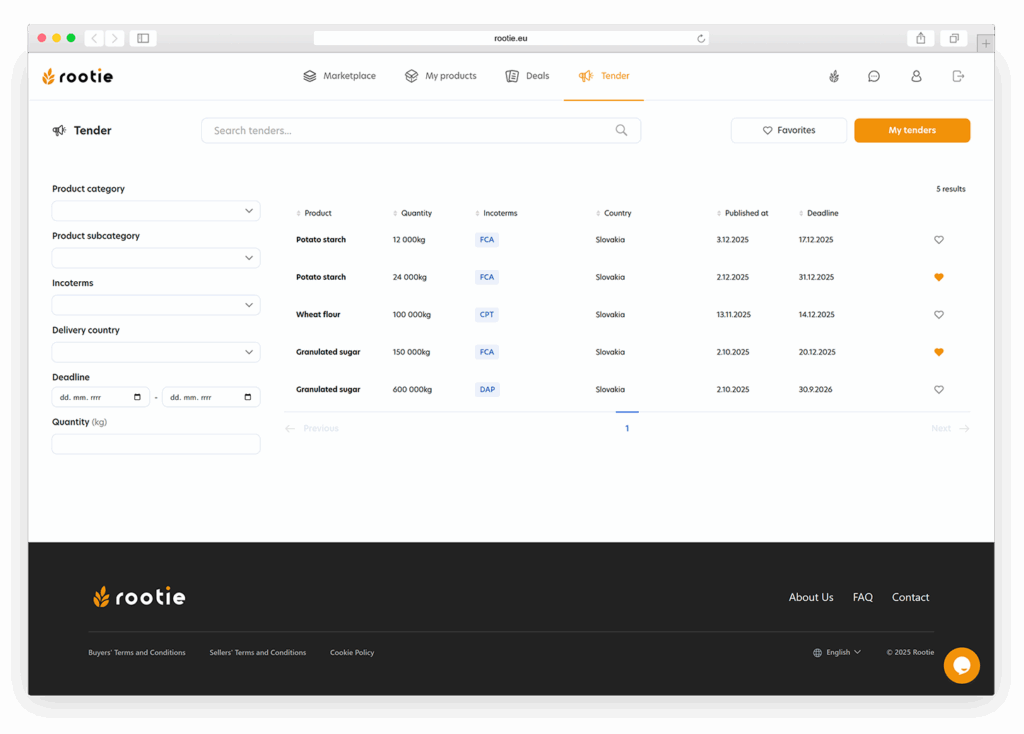
The seller has access to a list of all active tenders published by buyers in the Rootie system. This section is the seller’s key workspace – it allows you to monitor new opportunities, mark important tenders and access their details. Proper use of this section significantly speeds up the response to inquiries and increases business success.
Main tender overview
After opening the Tenders section (see Figure 68), the seller will be shown a list of all active tenders. Each tender contains basic information that allows you to quickly assess the suitability of participation:
- product name,
- requested quantity,
- incoterms,
- publication date and expiration date,
- status (always Competing, since the seller sees only active tenders),
- information on whether the seller has already participated in the tender.
The list is sorted chronologically and automatically highlights tenders whose validity is approaching the end.
Tender filtering
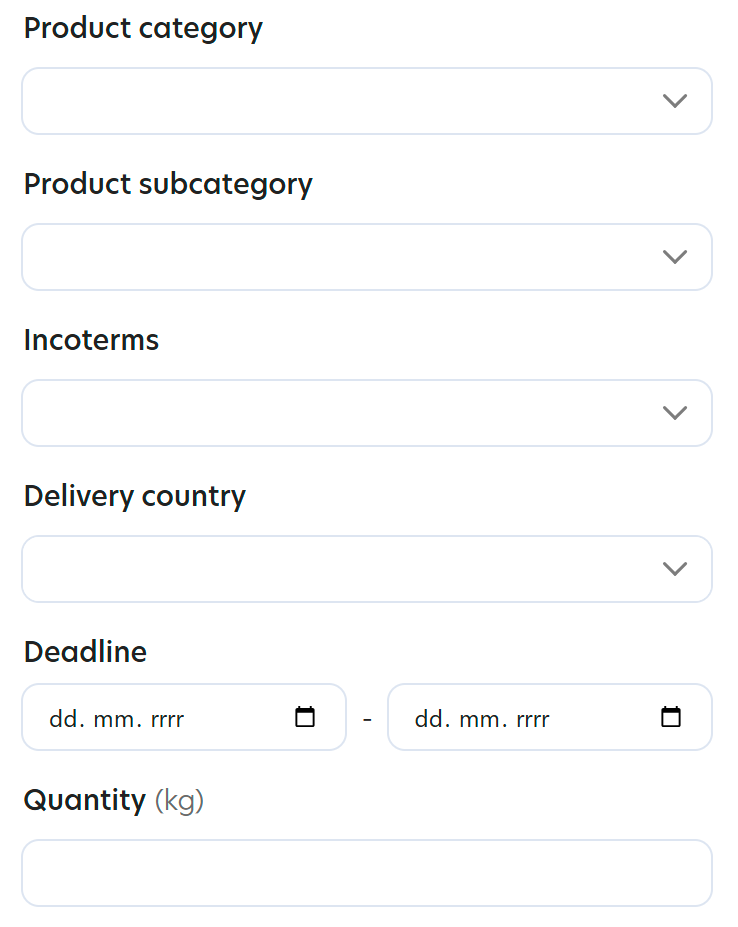
The seller can use filters (see Figure 69) to quickly narrow down the offer of tenders according to the parameters:
- product category,
- quantity,
- country of origin,
- incoterms,
- dates.
Benefits of filters: speeding up work, eliminating irrelevant tenders and easily finding requests that match the seller’s capabilities.
Favorite tenders
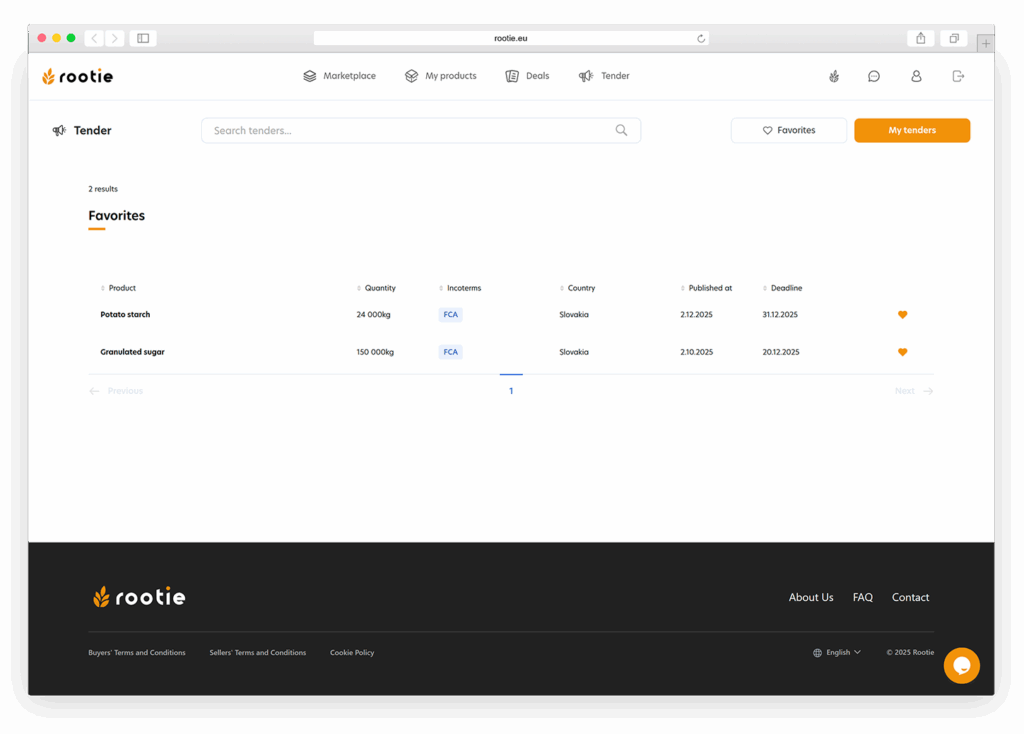
The seller can mark any tender as Favorite by clicking on the icon (see Figure 70). This function is used to:
- save tenders that the seller wants to return to later,
- quick access to important tenders,
- create your own work list.
Favorite tenders are displayed in a separate Favorites subsection.
Note
The favorites function is only used for internal orientation of the seller - the buyer does not see who has marked the tender.
Tender detail
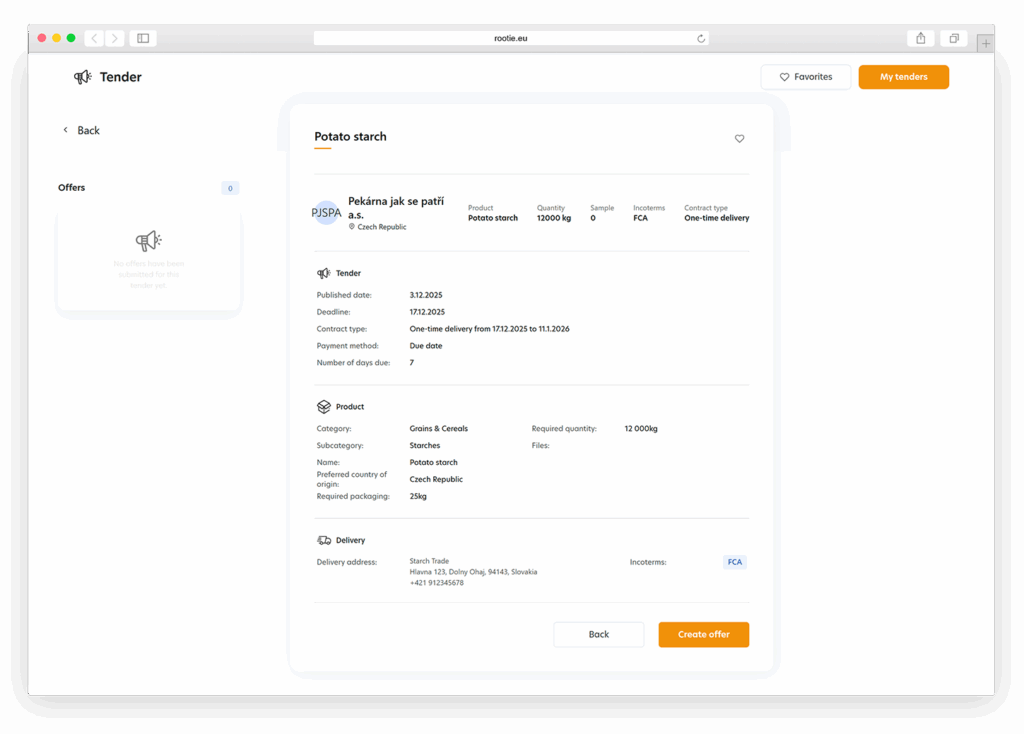
After clicking on the selected tender, its complete detail will be displayed (see Figure 71). It contains all the information that the buyer entered when creating the tender:
- business conditions (dates, payments, contract type),
- specification of the requested product,
- required origin,
- quantity and packaging,
- request for a sample,
- attachments as PDF documents,
- delivery terms and address.
The seller has an immediate overview of all parameters in detail and can assess whether the tender is suitable for his products.
My tenders
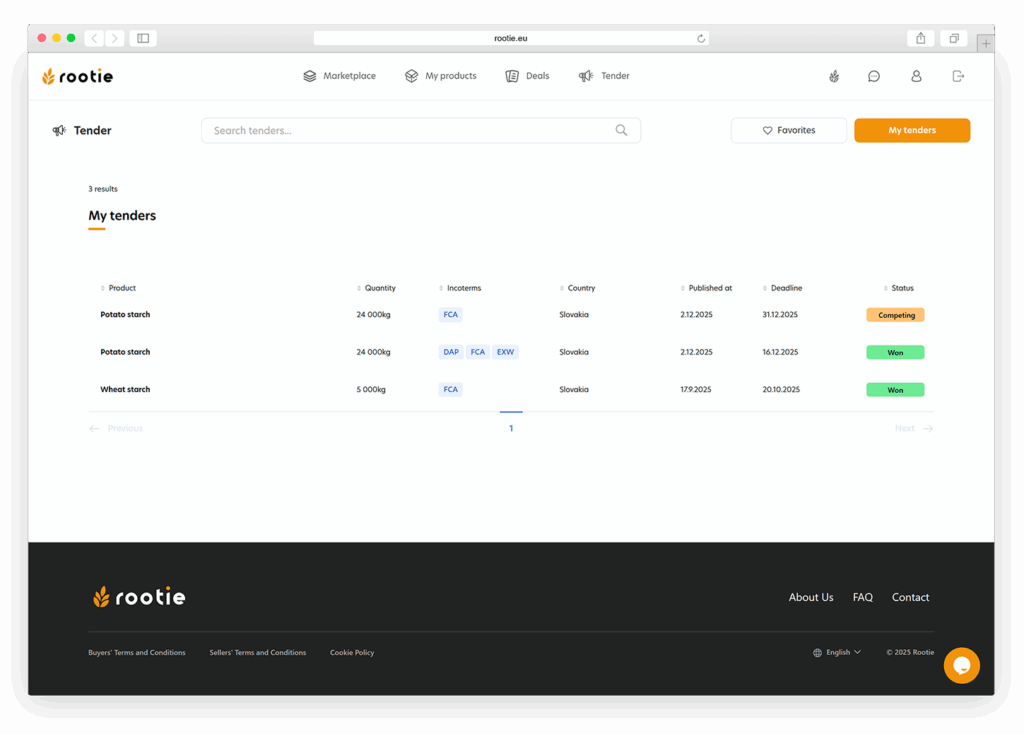
The seller has his own My tenders section, where he can see the tenders to which he has already submitted a bid (see Figure 72).
Each tender displayed in this section contains:
- status,
- information about whether it was selected,
- overview of the own offer,
- dates and parameters of the tender.
This section allows the seller to monitor the progress of his active offers.