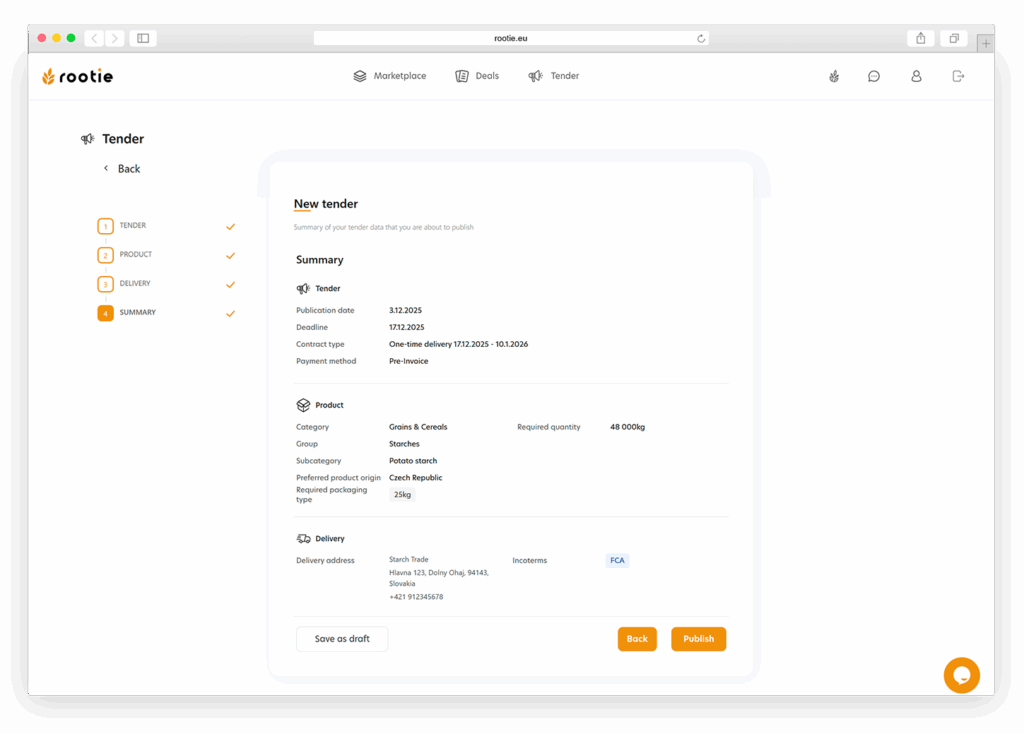




The tender creation process is divided into four clear steps. Each step contains specific information that will later be visible to sellers and used when preparing their offers. Proper and accurate completion is essential for sellers to prepare relevant and comparable price offers.
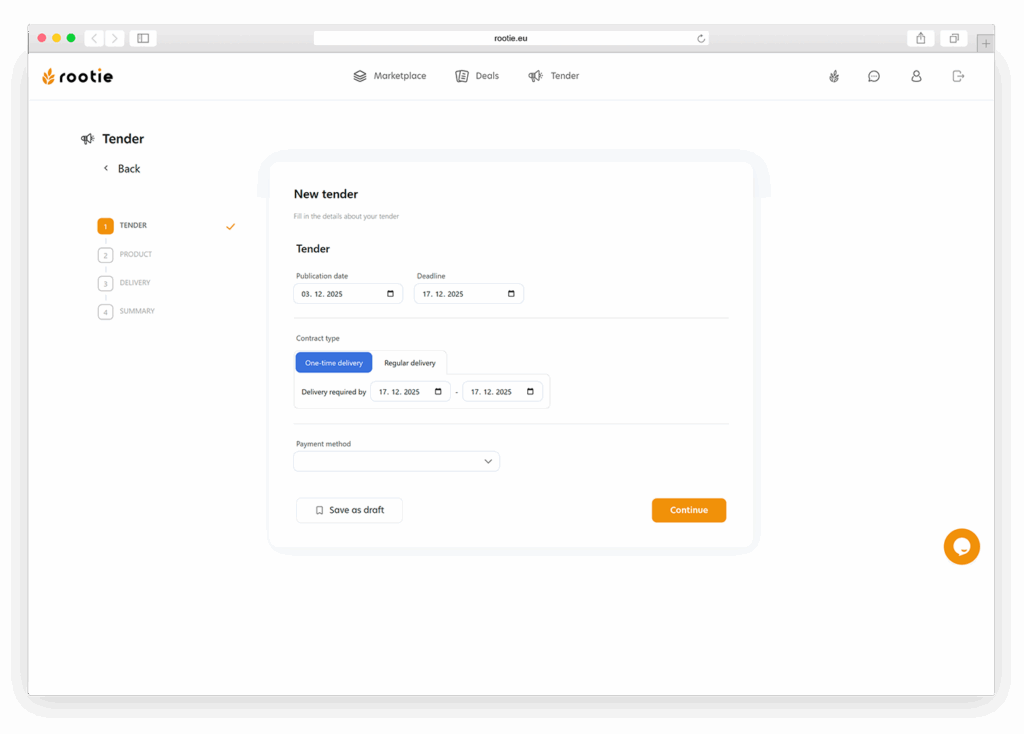
Step 1: Tender (Commercial Parameters)
In the first step, the buyer defines the key commercial conditions of the tender (see image no. 61).
A. Publication Date / Expiration Date
- The publication date determines when the tender becomes visible to sellers.
- It can be set in the future (scheduled publication).
- The expiration date defines the last day on which sellers can submit their offers.
Note
The tender must be active for at least 24 hours. A tender with a future publication date will be published automatically on the scheduled day.
B. Contract Type
- One-time delivery – the buyer specifies the exact week of delivery.
- Recurring delivery – weekly or monthly delivery; the buyer specifies the date of the first delivery.
C. Payment Method
- Invoice – standard post-delivery payment.
- Letter of Credit – documentary LC.
- Payment terms – the buyer defines the number of days until due date.
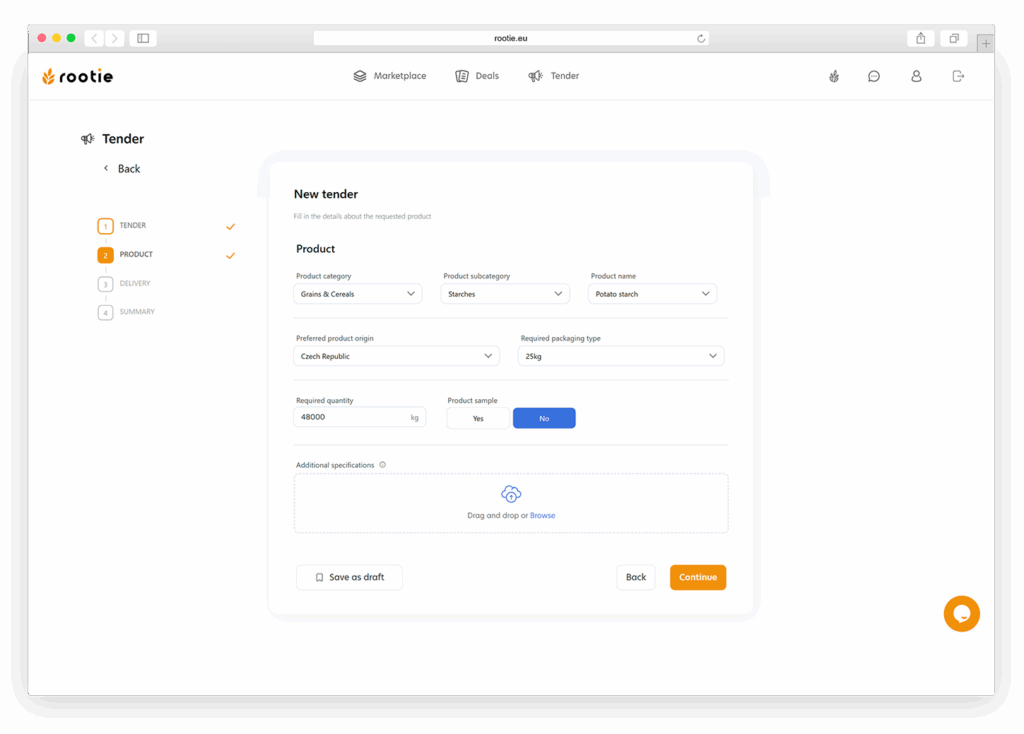
Step 2: Product
In this section, the buyer defines all product-specific requirements (see image no. 62).
Product Category
Selection of the main category and subcategory so sellers can correctly identify the segment.
Product Name
Clear and accurate naming of the requested product.
Preferred Origin
An optional field to specify preferred country or region of origin.
Packaging Type
The buyer selects the required packaging format (e.g., 25 kg, 100 kg, big bag, etc.).
Required Quantity
The quantity the buyer intends to purchase, depending on the product type.
Product Sample
Option to request a product sample. If enabled, the required sample size must also be specified.
PDF Attachments
Option to upload documents such as technical specifications, certificates, or other supporting files.
Note
PDF attachments are recommended. Maximum file size is 10 MB.
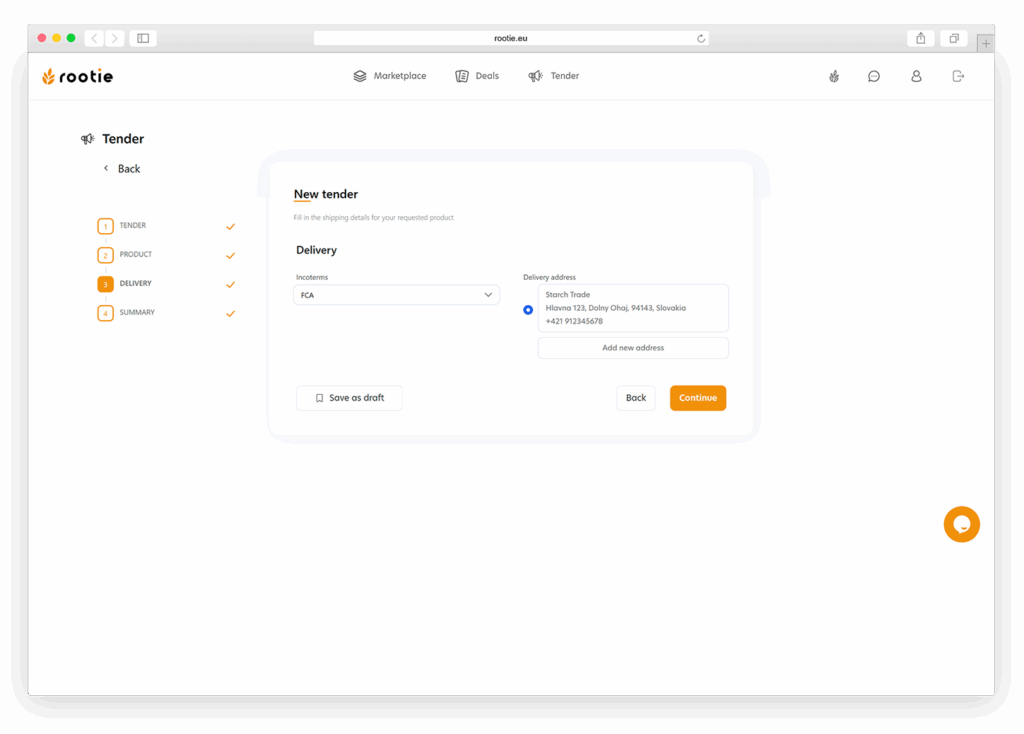
Step 3: Transportation
In this section, the buyer specifies all logistics parameters (see image no. 63).
Incoterms
Selection of commercial delivery terms (e.g., DAP, FCA, FOB…).
Delivery Address
– Option to select an existing address stored in the buyer’s profile.
– Or add a new address during tender creation.
Note
The delivery address directly affects the transportation cost in sellers’ offers.
Step 4: Summary
The final step displays a complete overview of the tender before saving it or publishing it (see image no. 64).
The buyer can:
– go back and adjust the entered data,
– save the tender as a draft (if it should not be published yet),
– publish the tender so it becomes visible to all sellers.
Available Buttons:
“Save as Draft” – saves the tender without publishing it.
“Publish” – makes the tender visible to all sellers.
“Back” – returns to the previous step.
Note
Once the first offer is submitted, the buyer can no longer edit the tender and may only cancel it. All tender details become visible to sellers only after the tender is published.