




When the seller finds a tender to which he wants to respond, he can create his commercial offer. The process is designed to be as simple as possible, but at the same time accurate enough to provide the buyer with all the necessary information for a fair comparison of offers.
After opening the tender details, the seller clicks the „Create offer”“ button (see Figure 73). If the seller has not yet created any products in his portfolio, the system will notify him that it is not possible to create an offer.
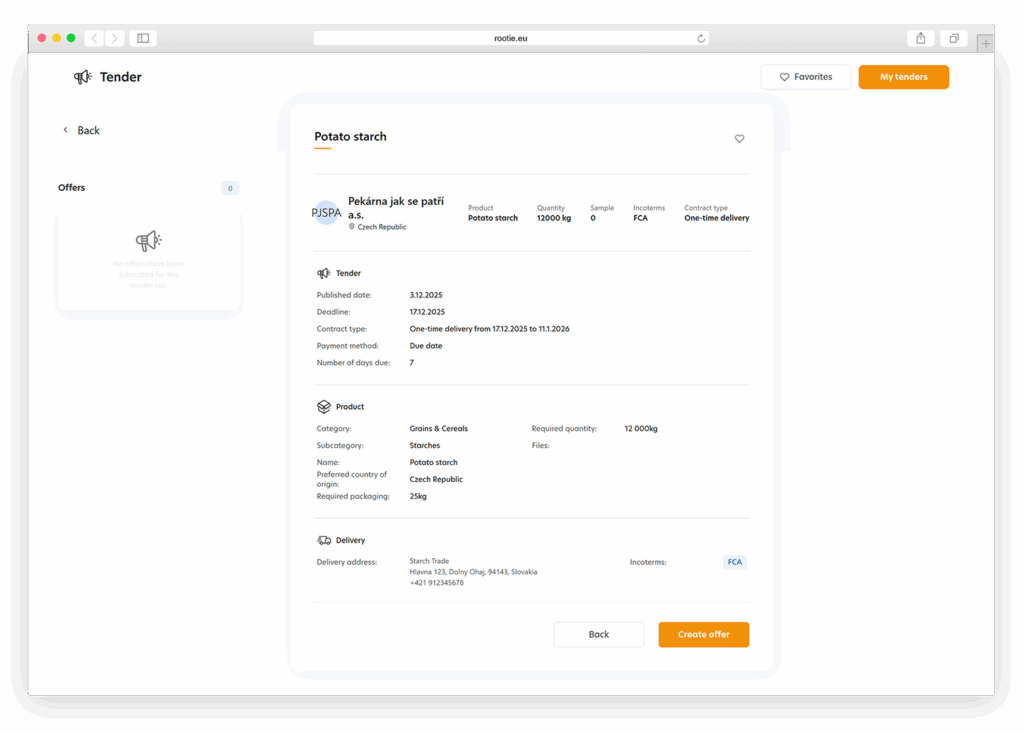
Step 1: Select a product from the portfolio
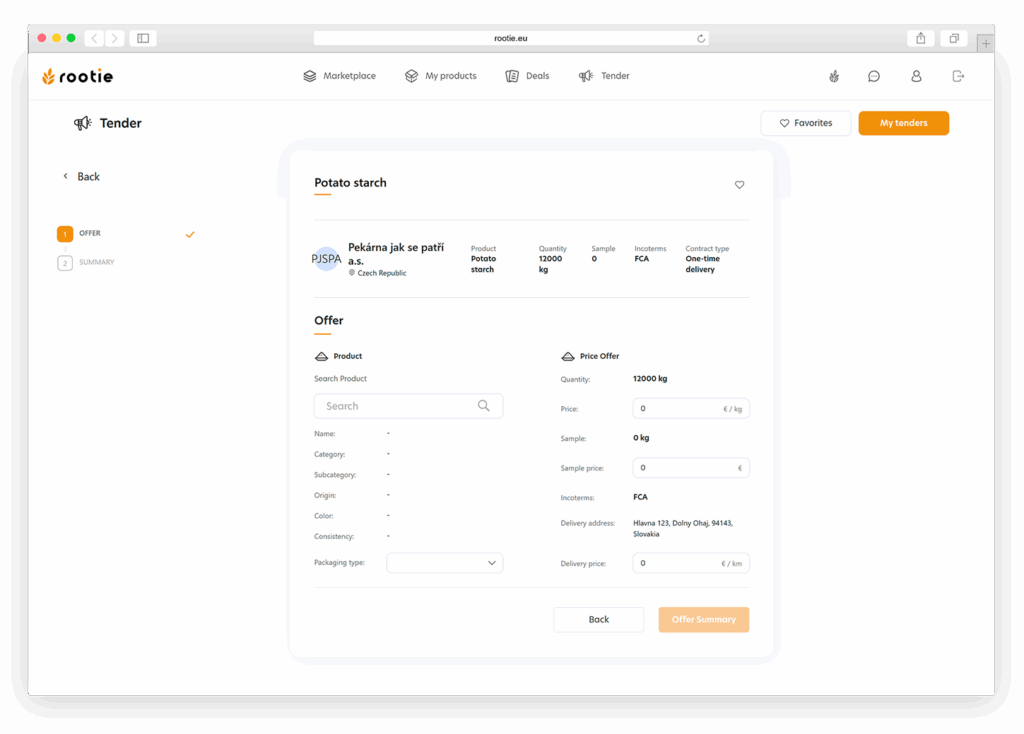
The seller must select one of his existing products listed in the My products section (see Figure 74).
Note
The seller can only respond with a product that he has created and approved in his portfolio. The information of the selected product will automatically be transferred to the offer (origin, parameters, packaging, etc.).
Step 2: Price and logistics offer
After selecting the product, the seller fills in the price and shipping data (see Figure 74).
Price per kg
The main item according to which the buyer compares individual offers.
Price per sample
It is entered only if the buyer requests a sample in his tender.
Incoterms
The seller chooses the delivery terms under which he is able to deliver the goods.
Price for transportation
– It is entered in the case of incoterms where transportation is provided by the seller.
– If transportation is not on the seller’s side, the item can be left blank.
Delivery address
The address specified by the buyer in the tender is displayed so that the seller can correctly determine the costs.
Step 3: Offer summary
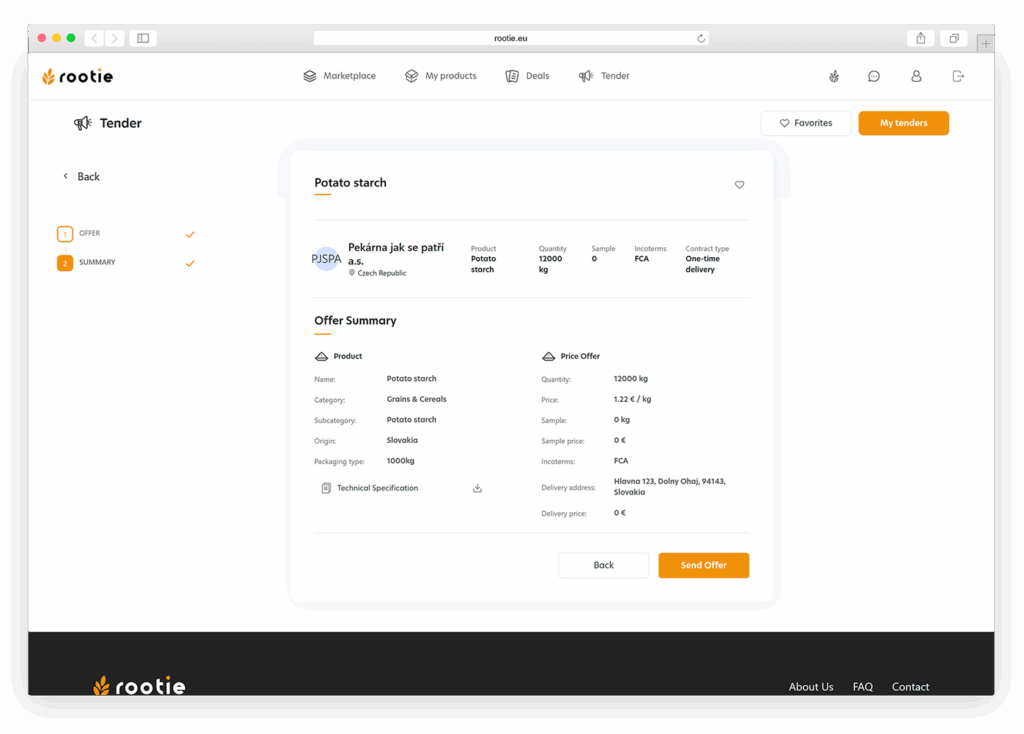
In the last step, the system displays a complete overview of the offer (see Figure 75):
- the product offered,
- price per kg,
- price per sample (if relevant),
- transport costs,
- total calculation,
- all business and logistics parameters.
The seller can check the offer and, if necessary, go back to edit the data by clicking the „Back“ button.
Sending the offer
After confirmation via the „Send offerbutton, the offer is sent to the buyer and the tender is moved to the My tenders section for the seller.
What happens after sending:
- the buyer receives an e-mail notification about the new offer,
- the offer is sorted among the other offers in the tender,
- the seller can no longer change the offer, but can monitor the status of the tender.
Note
The offer can no longer be edited after sending. If the tender status changes to Closed or Canceled, no bids can be submitted.