




The My Tenders section serves as the buyer’s central workspace, providing full control over all tenders, their statuses, received offers, and available actions throughout each phase. This section covers the entire process from the tender’s publication to its closure or cancellation.
Overview of the “My Tenders” Section
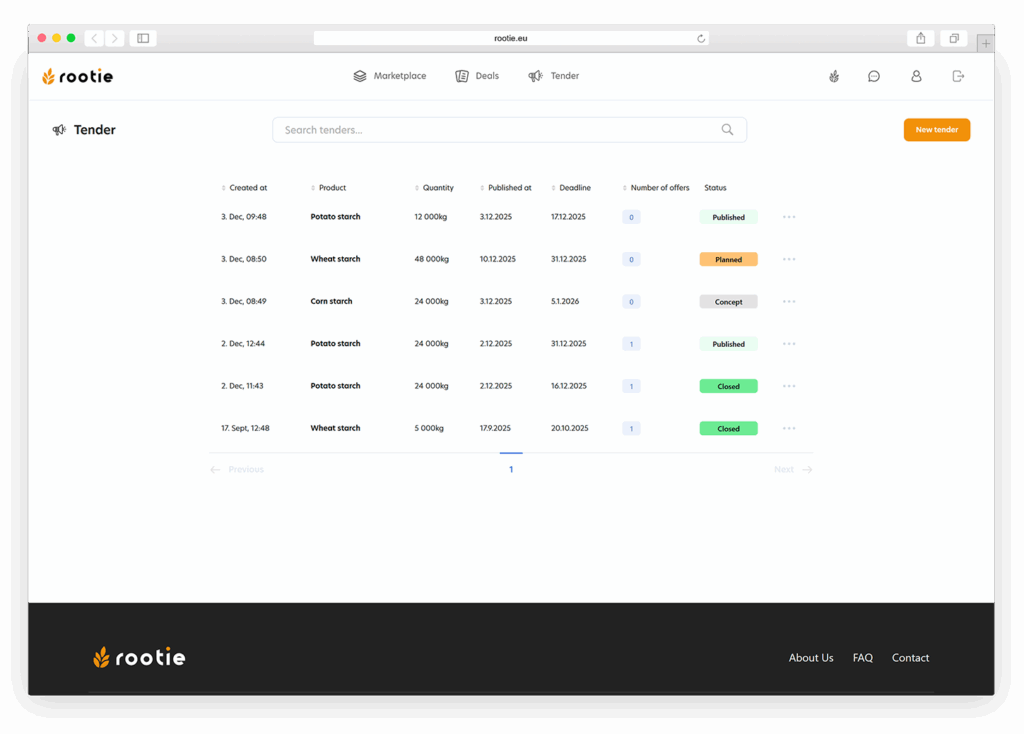
Upon opening the section (see Figure 65), the buyer sees a list of all their tenders in their current states. Each tender in the list includes key information:
- product name
- quantity
- incoterms
- publication date
- validity date
- status
- number of offers received so far
Clicking on a tender opens its detailed view.
Tender Detail
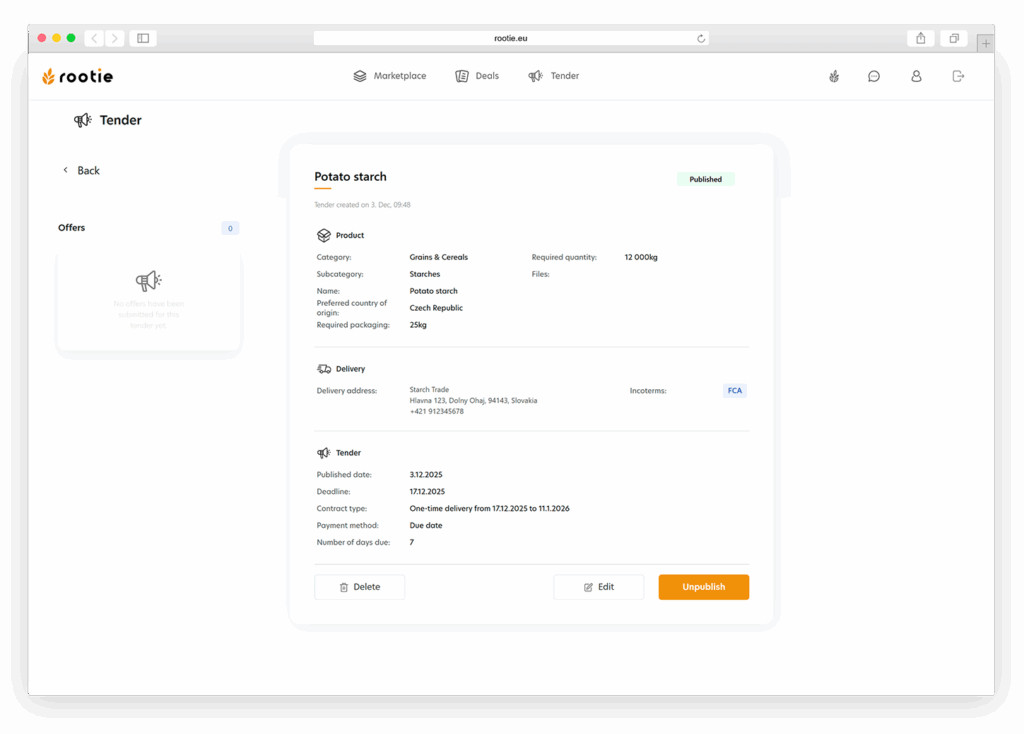
In the tender detail view (see Figure 66), the buyer can access all information entered during the tender’s creation, along with a list of received offers. This overview allows the buyer to:
- review tender parameters,
- monitor the number of offers,
- view submitted offers,
- check the current tender status.
Sellers’ Offers
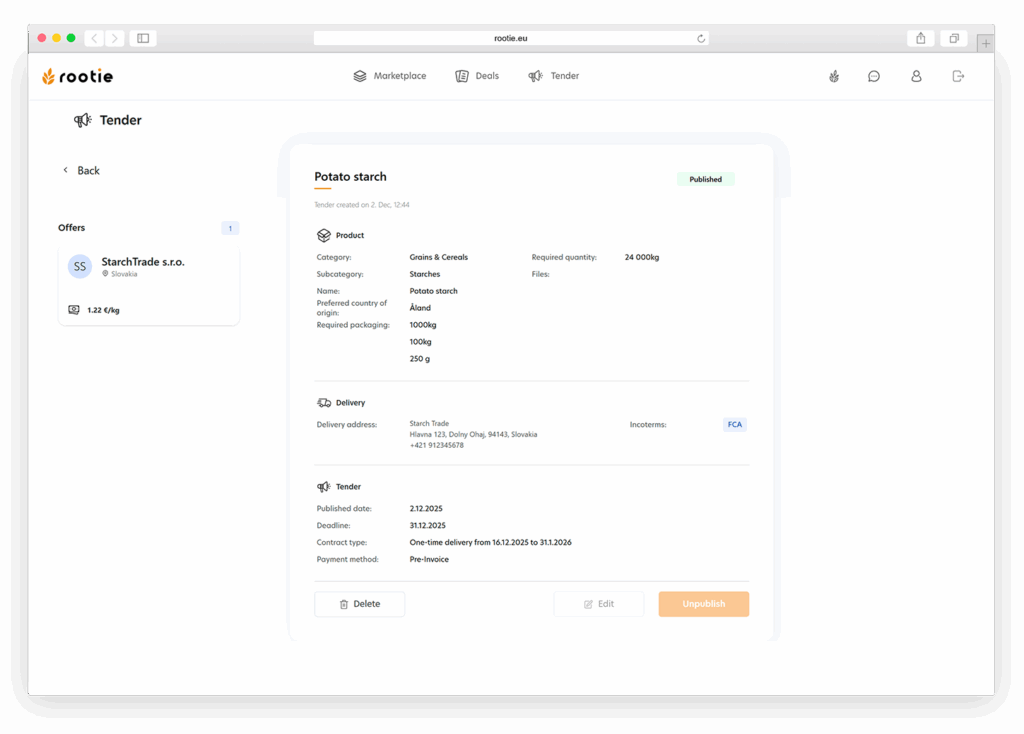
Once the first offer is received, the Offers tab automatically becomes active, showing all sellers who have participated.
Clicking on an offer opens its detail view (see Figure 67), which includes:
- the seller’s product parameters,
- offered price,
- logistics costs,
- complete commercial terms.
Offer Acceptance
The most important step for the buyer is selecting the most suitable offer.
Acceptance process:
- The buyer opens the detail view of the selected offer.
- Clicks the Accept Offer button.
- The tender automatically moves to the Closed status.
- The system generates a PDF document titled Order Agreement.
- Both parties are notified of the result via email.
Note
Once an offer has been accepted, the tender cannot be reopened.